Sending Faxes via TIPS Portal
1. Login to Phone.Pfeiffer.edu
2. Navigate to the Fax tab.
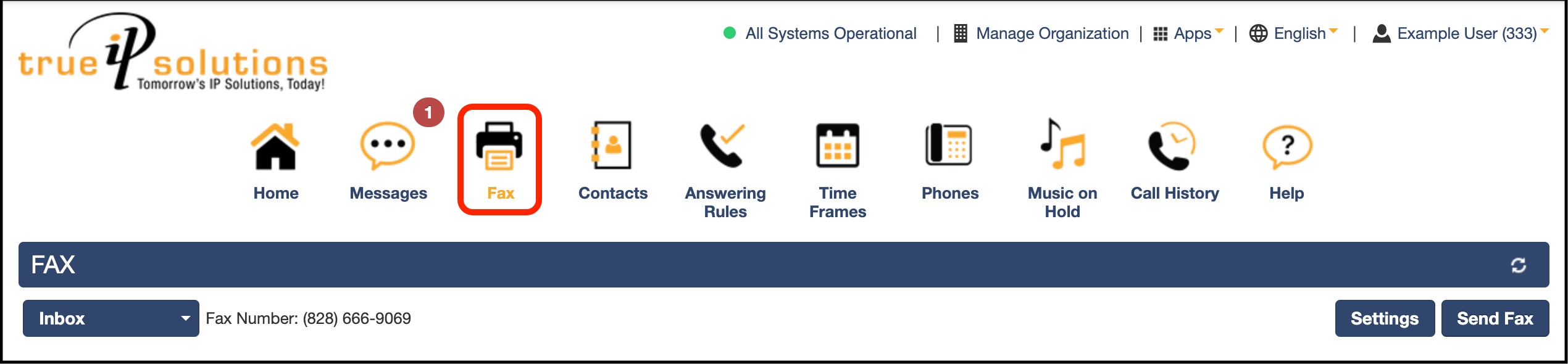
3. Click on the Send Fax button.
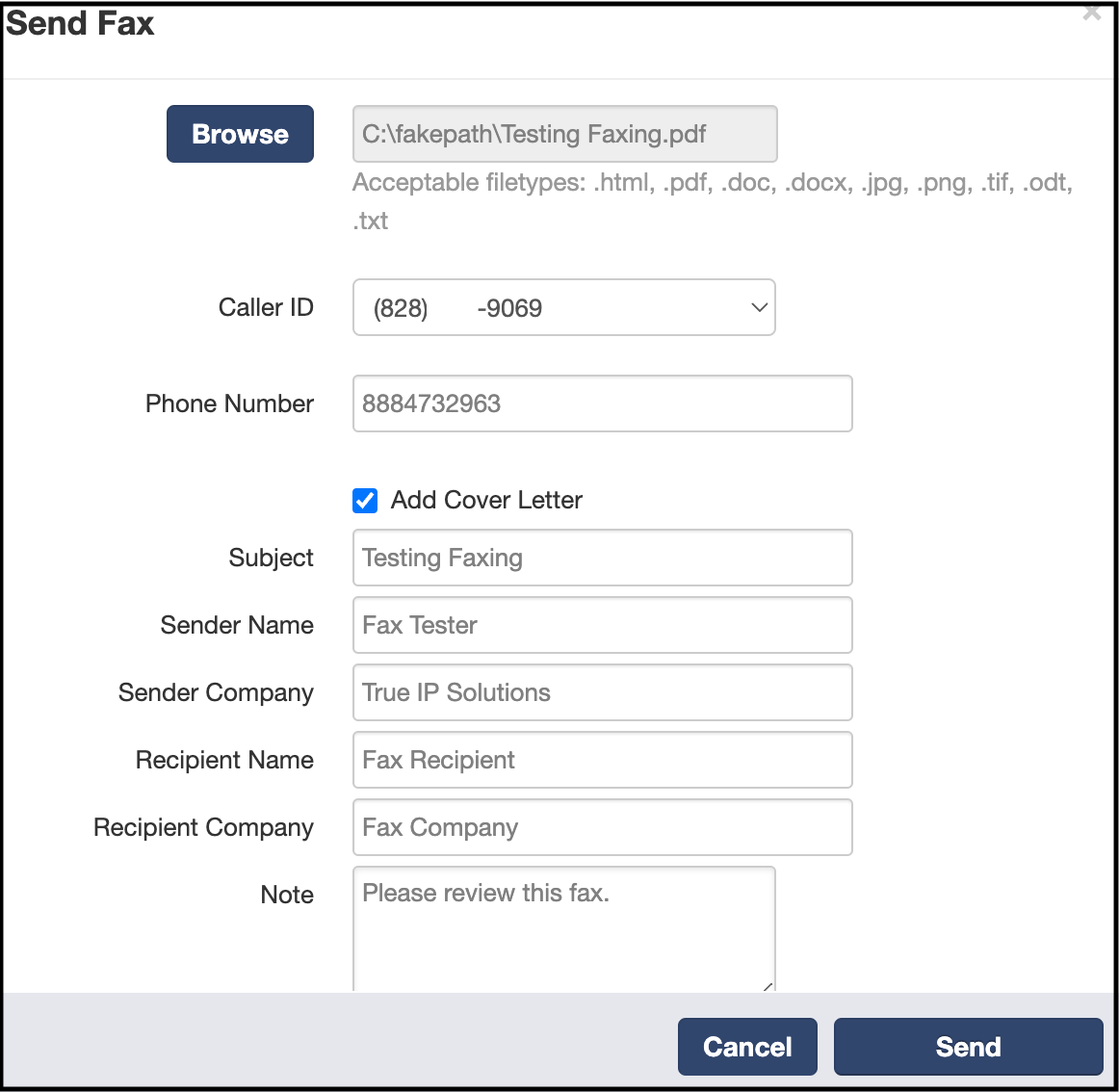
4. Use Browse to select the file you wish to Fax.
5. If the User has multiple numbers assigned, select the number you want to send as by selecting the number in the CallerID dropdown menu.
6. Phone Number - Enter the Phone Number you wish to send the fax to.
7. Add Cover Letter if needed, filling in only the text boxes.
Once Sent, you can view the Status by selecting Sent under the Inbox drop down.

Once the fax has successfully sent, the fax will display as downloadable with the date and number of pages.

Viewing Inbound Faxes Using TIPS Portal
To view Inbound Faxes within the Portal -
1. Login to phone.pfeiffer.edu
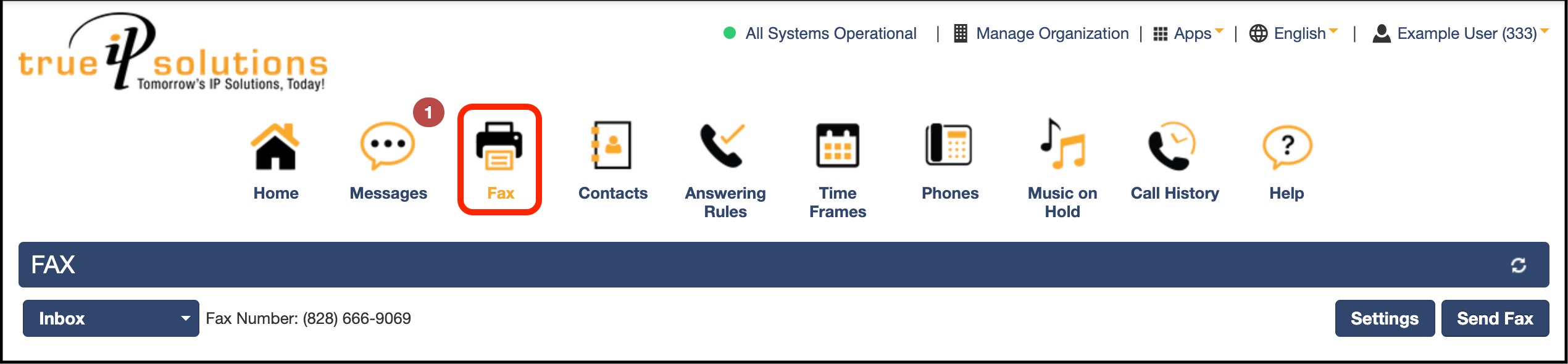
2. Go to the Fax Tab
3. Click on the Download button to review the fax (PDF Format).

4. You can delete the fax, by selecting the Red 'X' on the right side.
Was this article helpful?
That’s Great!
Thank you for your feedback
Sorry! We couldn't be helpful
Thank you for your feedback
Feedback sent
We appreciate your effort and will try to fix the article